 Bikube
Terminals
Shells & triggers
The Default shell, named shells and triggers a workspace keeps beside its cards, temporary shells, and running a shell in a card's worktree.
On this page
Cards are tasks for agents. For everything else, such as a dev server, a test watcher or a plain prompt, a workspace has shells: terminals that aren't tasks and never appear on the board. This page covers the Default shell, named shells, triggers, temporary shells, and running a shell in a card's worktree.
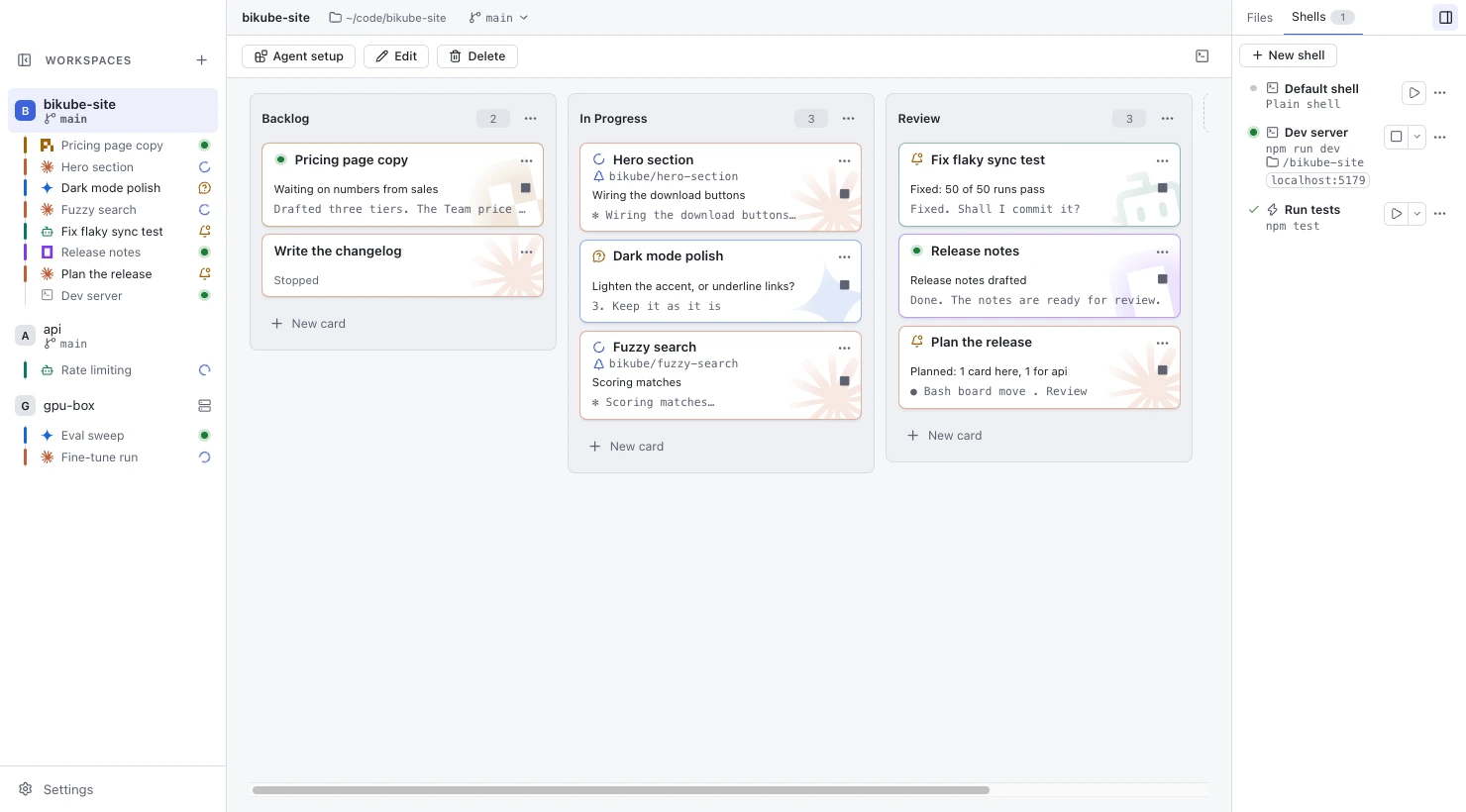
The Shells tab
A workspace's shells are listed in the Shells tab of the side panel, beside its board and beside every card or shell you open. The tab shows how many of them are running. While the side panel is hidden, the title bar shows a 1 shell (or 2 shells) chip when any is running; click it to show the panel on that tab.
Each row shows the shell's type icon and name, its command (or Plain shell), and its Start or Stop button and ⋯ menu (right-click a row to open the menu too). While a shell runs, its row also shows where it runs (the workspace folder, or a worktree's branch) and its dev server chips.
Click a row to open the shell at full size, starting it first if it isn't running. Click its Start button to start it without opening it. An open shell works like an open card: you can split it into panes, search it, zoom a pane and open it in its own card window. ⇧⌘B / Ctrl+Shift+B goes back to the board and leaves it running.
The Default shell
Every workspace has a Default shell: a plain login shell in the workspace's folder, always first in the Shells tab. It can't be edited or deleted. Open it from its row, or press ⌘T / Ctrl+Shift+T (default shortcut) (New shell) while it isn't running.
Named shells
Click New shell at the top of the Shells tab to add one:
| Field | What it does |
|---|---|
| Type | Shell (a click opens its terminal) or Trigger (a click runs its command in the background; see below). |
| Name | The shell's name, such as Dev server. Required. |
| Command | Optional for a shell: a one-line command typed each time it starts, such as npm run dev. Leave it empty for a plain shell. A trigger needs one. |
| Start when the workspace opens | Starts the shell the first time you open the workspace after launching Bikube. A shell marked so shows a power icon on its row. |
A named shell's ⋯ menu has Start (or Restart while it runs), Close, Open in new window, Run in (see below), Edit… and Delete. Deleting a running shell asks first, since it is stopped.
A shell's definition (its type, name, command and whether it starts with the workspace) is saved and synced with the workspace. Where it runs and its process stay on each machine.
Triggers
A trigger is a named shell for a command that ends: a build, a test run, a deploy, or a dev server you start with one click. Clicking its row runs the command in the background, without opening it; the shell exits when the command ends. Click it again while it runs to open it and watch its output.
Its status icon tells you where it is:
| Icon | Meaning |
|---|---|
| Hollow dot | Not running: never run in this session, or closed. |
| Spinner | Running. |
| Green dot | Running, and a dev server it printed is listening (its tooltip names the port). |
| Check | Done: the command exited with 0. |
| Cross | Failed: the command exited with another code (Failed (exit 2)), or couldn't start. |
A failed trigger shows the last line it printed under its row. Click that line to see its output in a dialog, with Copy and Run again. If the workspace's Shells tab isn't in view when it fails, Bikube sends a notification (with Notifications on in Settings); clicking it shows the tab with that dialog open.
A trigger running in the background isn't listed in the sidebar's tree of running cards and shells until you open it.
Temporary shells
⌘T / Ctrl+Shift+T (default shortcut) opens the Default shell when it isn't running. When it is, the shortcut opens a new temporary shell instead, named Terminal 1 (the lowest free number), at full size. The New terminal button in the title bar, over an open card or shell, does the same.
Temporary shells are for a quick command. They are listed in the sidebar's tree and the command palette, but not in the Shells tab, and they are removed as soon as they stop (exit, or ⇧⌘W / Ctrl+Shift+Q). They are never saved or synced, and can't be edited or moved to a worktree.
Run a shell in a worktree
A named shell of a local workspace normally runs in the workspace folder. To run it in a worktree card's worktree instead, for example to start the dev server on the branch an agent is working on:
- With the worktree card open, click the chevron beside the shell's Start or Stop button in the Shells tab and pick Run in this worktree. Run in workspace folder moves it back.
- Or pick a worktree card under Run in in the shell's ⋯ menu (listed as the card's title and branch), or Workspace folder.
A running shell starts again in its new place; a stopped one runs there from its next start, and its Start button's tooltip names the branch. When the worktree card is deleted or its worktree removed, the shell runs in the workspace folder again. The Default shell, temporary shells and SSH workspaces' shells always run in the workspace folder.
Shells in SSH workspaces
In an SSH workspace, every shell runs on the host, in the workspace's remote folder, through your own ssh, like the workspace's cards. They show no dev server chips, since their localhost is the remote machine.
Checked against Bikube 0.9.1