 Bikube
Terminals
Worktrees & git
Cards with their own git worktree and branch, the Worktree setup command, and the branch, pull request and merge tools Bikube shows for them.
On this page
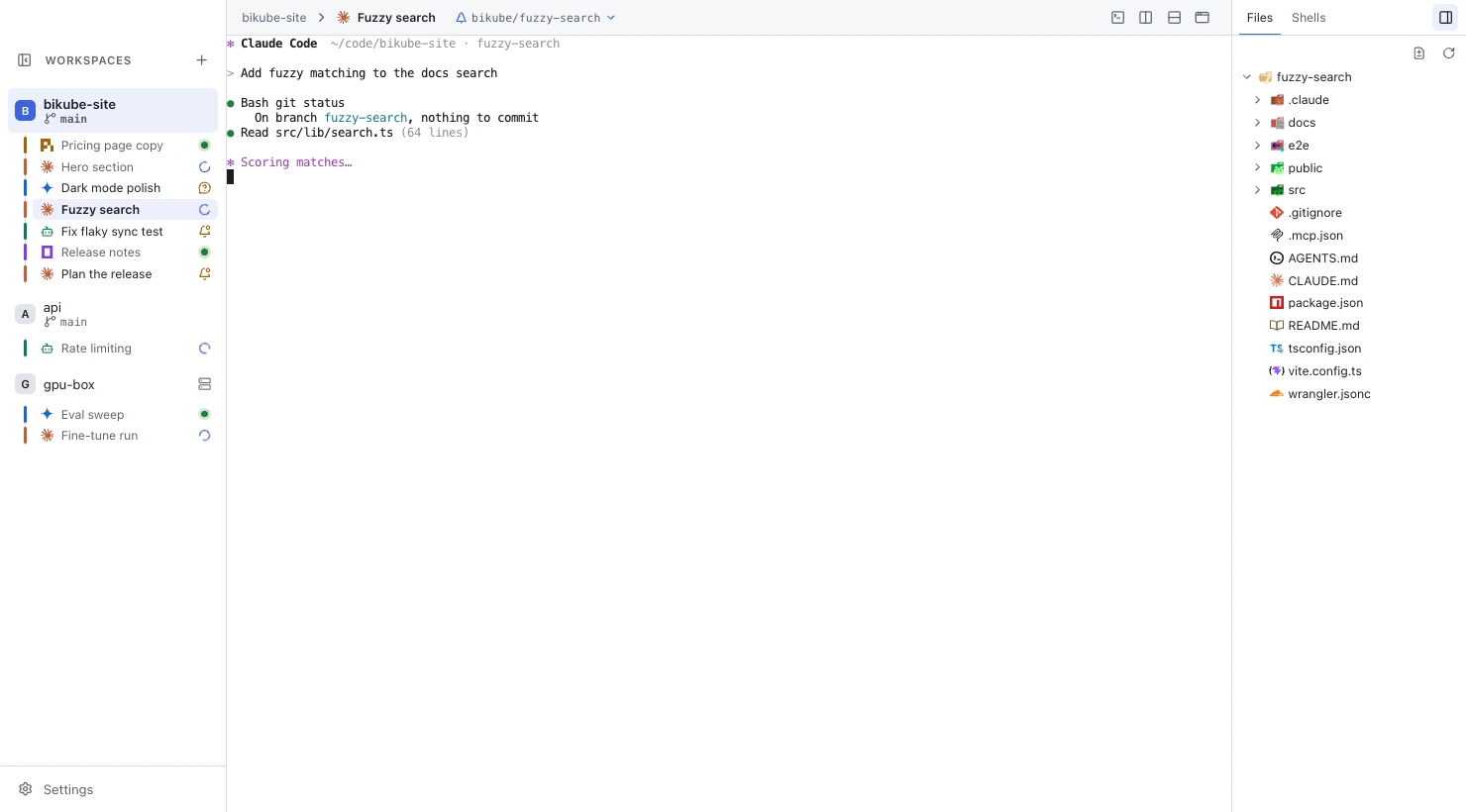
Agents working in the same checkout edit the same files. A card with its own worktree gets a separate git worktree on a new branch, so its agent's changes never touch the workspace's checkout or another card's. This page covers worktree cards from creation to removal, and the git tools Bikube shows around them.
Worktree cards
In a local workspace whose folder is in a git repository, the New card dialog has Own worktree. Check it and the card gets:
- a new branch, named
bikube/and the card's title as a slug (lowercase letters, digits and dashes, at most 40 characters, such asbikube/fix-the-login-redirect), with-2,-3added when it is taken. The Branch field lets you change it; - a git worktree on that branch, made from the repository's current HEAD;
- a copy of the repository's git-ignored files (
node_modules,.envand the like), so the worktree is ready to run. Bikube copies them copy-on-write where the file system allows (APFS on macOS, reflink file systems on Linux), so even a largenode_modulestakes little time and space.
The card then runs in its worktree: its agent, its extra panes and its Files tab all use that folder. On the board it shows its branch.
Worktrees live in Bikube's data folder, under worktrees (see Where Bikube stores its data), never inside your repository. SSH workspaces have no worktree cards.
Agents can ask for worktree cards too, with board create --worktree; see Pending worktrees.
Worktree setup
A fresh worktree often needs more before an agent can run tests: dependencies installed, a file generated. A local workspace's Worktree setup, in its Create or Edit dialog, is a one-line command such as npm ci or uv sync that every new Own worktree card runs first.
- The setup runs in the card's own terminal, so you see its output there. The card shows Setting up meanwhile.
- When it succeeds, Bikube starts the card's agent. When it fails, the card shows Setup failed, the agent doesn't start, and the shell stays open for you to look into it.
- While a card is setting up or its setup failed, its ⋯ menu has Retry setup (runs it again) and Skip setup (starts the agent without it).
- A setup that didn't succeed runs again on the card's next start, until it succeeds or you skip it; after that it never runs again for that card.
With a setup set, the New card dialog says so under Own worktree (Runs npm ci first). Changing the workspace's setup affects new cards only. The command must be one line and can't end with ;, & or |. The setup syncs with the workspace; whether a card still has to run it stays on the machine that made its worktree.
Move a card into its own worktree
A stopped local card in a git repository can move into a worktree of its own: pick Move to own worktree… in its ⋯ menu, check the Branch, and click Move. Bikube makes the worktree as for a new card, and the card runs there from its next start, after the workspace's Worktree setup if it has one.
The card's agent starts a new session in the worktree, since agents keep their conversations per folder.
Pending worktrees
When an agent runs board create --worktree, the worktree isn't made at once: the card shows Worktree on first open and runs nothing. The first time anyone opens it, on any machine, Bikube shows Making its worktree…, makes it, runs the Worktree setup and starts the agent there.
If git fails, the card shows Couldn't make its worktree with git's reason and two buttons: Retry, and Run in workspace folder, which drops the worktree and runs the card in the workspace folder. See The board command.
Remove or delete a worktree
- Remove worktree…, in a stopped worktree card's menu, deletes the worktree folder and keeps the card, which then runs in the workspace folder, on the branch checked out there. Its agent starts a new conversation.
- Delete on a worktree card asks whether to remove its worktree too: Keep worktree or Delete worktree too.
Either way the card's branch is always kept, so no commit is lost. When the worktree has uncommitted changes, the dialog warns that removing it loses them. Deleting a workspace keeps its cards' worktrees.
If a worktree card's folder is gone (deleted by hand, or the card came from another machine through the sync folder), opening the card offers to run it in the workspace folder instead.
Branches in the title bar
For a local workspace in a git repository, the title bar shows the folder's current branch, and the sidebar shows it under the workspace's name. With a worktree card open, the title bar shows the branch checked out in its worktree.
Click the branch in the title bar to open the branch menu, which acts on that same folder:
- Local lists your branches, the current one marked; click another to switch to it. Each remote has its own section; clicking a remote branch switches to the local branch of the same name, creating it to track the remote one when needed.
- New branch creates a branch from the current commit and switches to it.
- Fetch fetches every remote; Pull fast-forwards the current branch; Push pushes it, setting its upstream on
originthe first time. - The header shows how far the branch is ahead of and behind its upstream (
↑2 ↓0), as of the last fetch, orNo upstream/No remote.
When git refuses (uncommitted changes in the way, a pull that can't fast-forward, a rejected push), the menu shows git's message and changes nothing; Bikube never stashes, discards or force-pushes. Git never prompts: a remote that needs a password says to set up an SSH key or a credential helper. Switching or pulling never stops running cards.
Pull requests and merging
A worktree card's ⋯ menu has two more items:
- Open pull request pushes the card's branch, then opens GitHub's page for a new pull request in your browser. When the branch already has an open pull request, the item reads Push and open pull request #12 and opens that one. It works with GitHub remotes only; for another host the push still happens and the card says
Not a GitHub remote: open the pull request on its site. - Merge into main (named after the workspace folder's current branch) merges the card's branch into it, in the workspace folder, after you confirm. Only the card's commits are merged, not its uncommitted changes. Bikube refuses when the workspace folder has uncommitted changes, and on a conflict it aborts the merge and lists the conflicting files, leaving the folder as it was.
While either runs, the card shows Pushing… or Merging…, then a note such as Pushed · opened in the browser or Merged bikube/fix-login into main. Neither moves the card: you or the agent do that.
Pull request chip
If you have the GitHub CLI (gh) installed and logged in, a worktree card whose branch has a pull request shows a chip with its number, #12, with a dot for its checks: green when they pass, red when one fails, amber while they run. A merged or closed pull request reads #12 merged or #12 closed. Click the chip to open the pull request in your browser.
Bikube reads it with your own gh every minute while its window is focused; it stores no GitHub token. Without gh, or when it isn't logged in, no chip shows and nothing else changes.
To see which files an agent changed, use the side panel's Files tab.
Checked against Bikube 0.9.1